

Controls & Suggested/Recommended Videos
Take a look at these 2 iframe embeds of the same video.
[youtube https://www.youtube.com/watch?v=fR_Sjv9bce4&w=640&h=360%5D
End screen on the first embed:

Vs. End screen on the second embed:
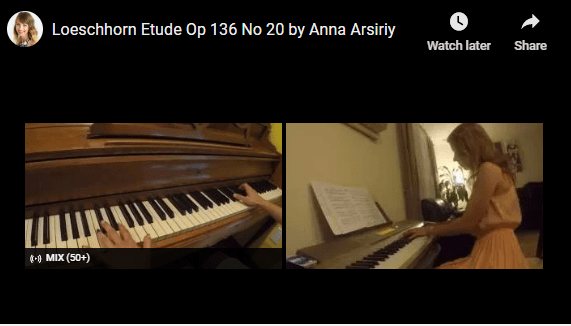
The second embed is an example of the video without any controls or suggested unrelated videos at the end. Suggested videos especially may distract users with miscellaneous content not even related to your website or your channel. I would say if the video is less than 1-2 min, it’s better to hide controls (pausing and fast forwarding would be disabled). But for longer videos having controls can be important.
Looping
This code (have to repeat individual code after “playlist=”) endlessly loops the video.
This option is extremely important for short videos in order to emphasize the content. For instance, to show off a jewelry shop’s best products through ever-rotating videos.
Example: https://zkaptivejewels.com/products/fancy-halo-pave-all-over-diamonds-engagement-or-anniversary-ring

Note that this Youtube embed video is not autoplayed. The video endlessly loops only if a user clicks to watch it (therefore, we’re giving a choice to users to decide whether they want to watch it or not).
No autoplay
Read my previous post about reasons why we should be avoiding autoplay videos
Even if HTML embed has autoplay=”false” it can still autoplay the video. According to this article, some versions of Chrome “don’t seem to understand true and false”. In order to remove it completely, autoplay attribute has to be removed completely from the code.
How to Make iFrame Embed Responsive
There are multiple ways to make your video embeds responsive. Let’s review 2 possible ways.
I. YouTube (writing CSS manually)
- Create a class (in this case “video-container”) and write the following css:
.video-container {
position: relative;
padding-bottom: 56.25%;
padding-top: 30px;
height: 0;
overflow: hidden;
}
- Place your iframe inside of <div class=”video-container”>

II. Vimeo (CSS is automatically added)
Click on Share airplane icon on the video itself (not on top right corner)

Click on Get embed code
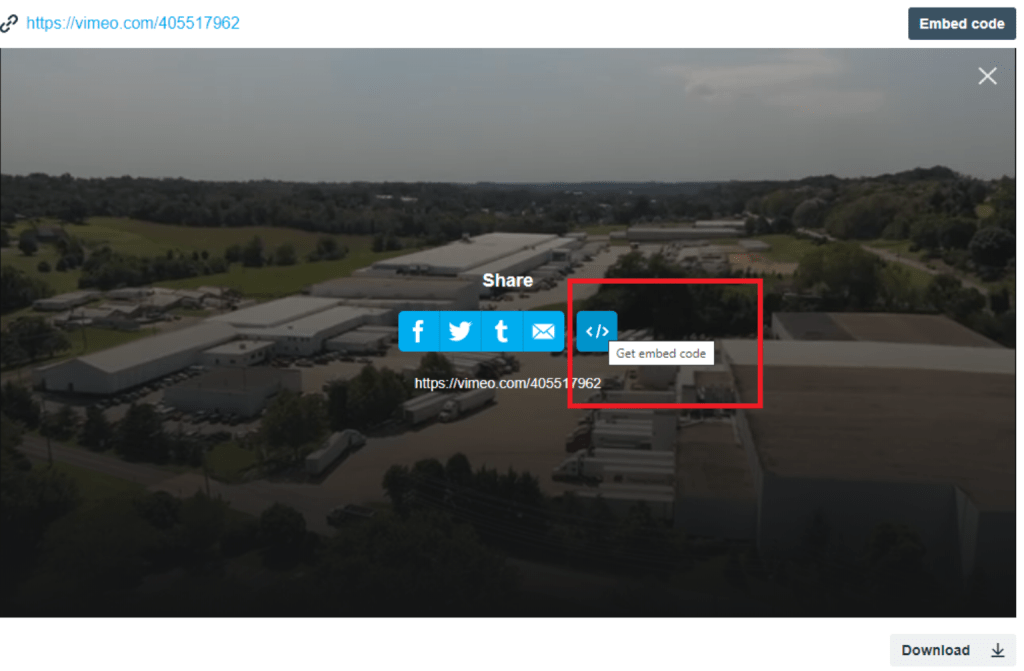
Click on Customize this embed
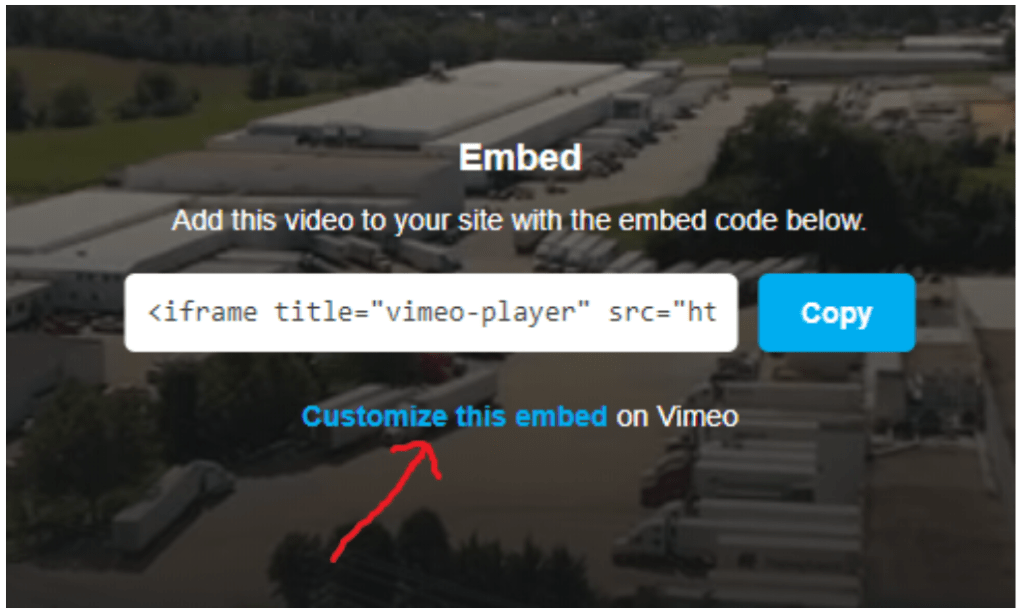
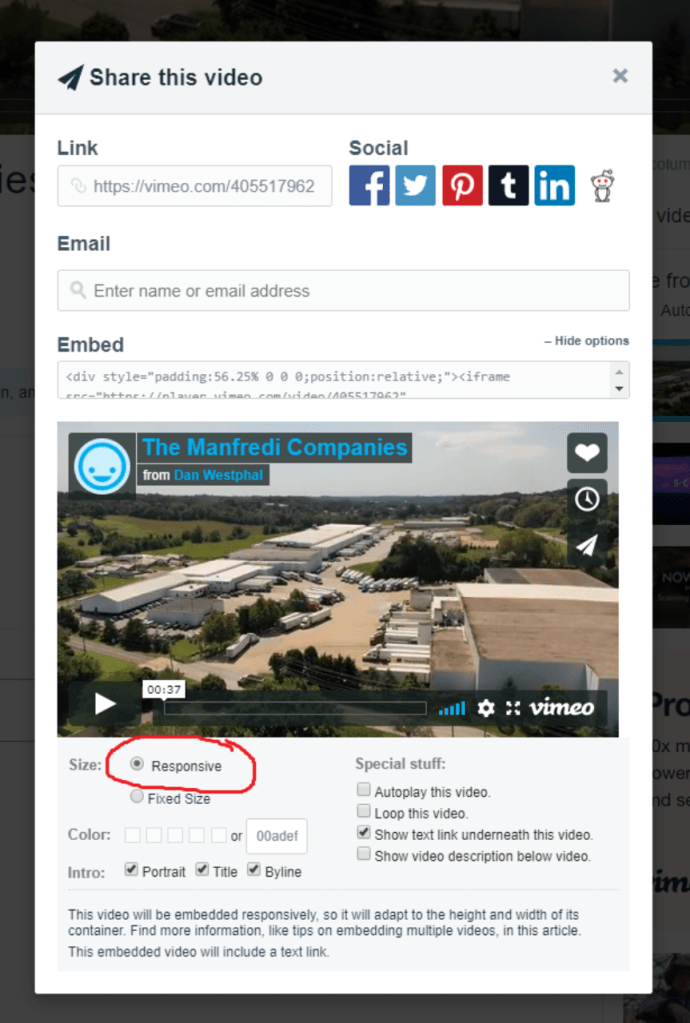
The new window pops up. Click on Show options

A lot of additional customizing options become available and you can choose Responsive which automatically adds inline styles to your embed code.

Related Posts
5 Dimensions of IxD explained with CTA example
The concept of 5 Dims of IxD using a very simple example of CTA.


9 Key Principles of “Good to Great” Design
Appropriate UI Design enables visitors to do what they came to do, what they…

Why I Choose Animated SVGs over GIFs
There are many benefits of using animated SVGs over GIFs, including size,…